Every Useful Windows Run Commands You Ever Need
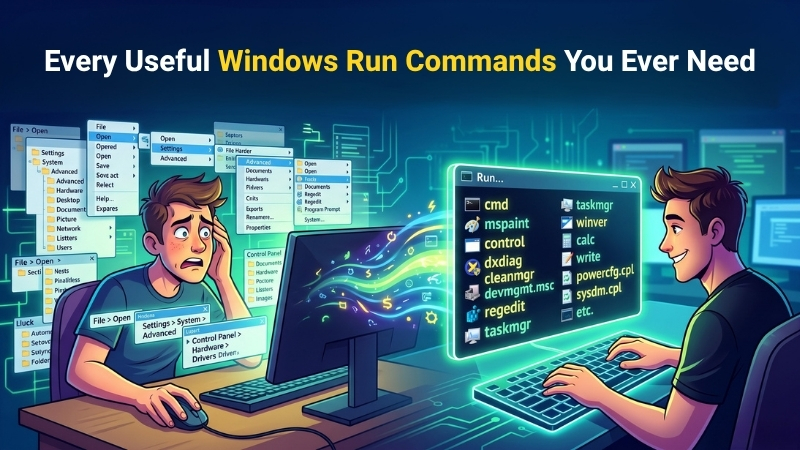
Most users spend far too much time digging through Settings, Control Panel, or endless right-click menus just to access a simple feature. Ironically, Windows already has a much faster method built in – the Run dialog box.
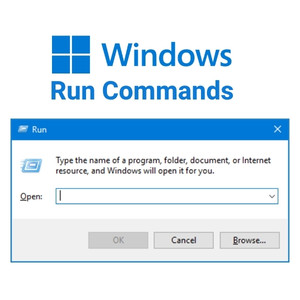
By pressing Windows + R, you can instantly launch hidden tools, troubleshooting utilities, advanced settings, and system information screens using simple commands. – Once you start using these Useful Windows Run Commands – it becomes surprisingly difficult to go back to clicking through five different menus for the same task.
How to Use Windows Run Commands
For IT admins and power users, these Useful Windows Run Commands are everyday tools. But even casual users can use them to troubleshoot issues faster, clean temporary files, manage startup apps, check hardware details, or access important Windows settings in seconds. Using Useful Windows Run Commands is simple:
- Press Windows + R
- Type the command
- Hit Enter
That’s it. Windows will instantly open the related tool or setting.
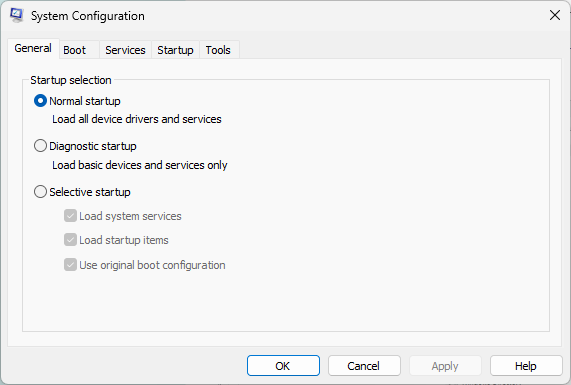
1. msconfig – System Configuration
The msconfig command opens the System Configuration utility. This is commonly used for managing startup settings, boot options, and troubleshooting Windows startup issues. IT admins often use it for clean boot troubleshooting when a PC is behaving strangely after software installation.
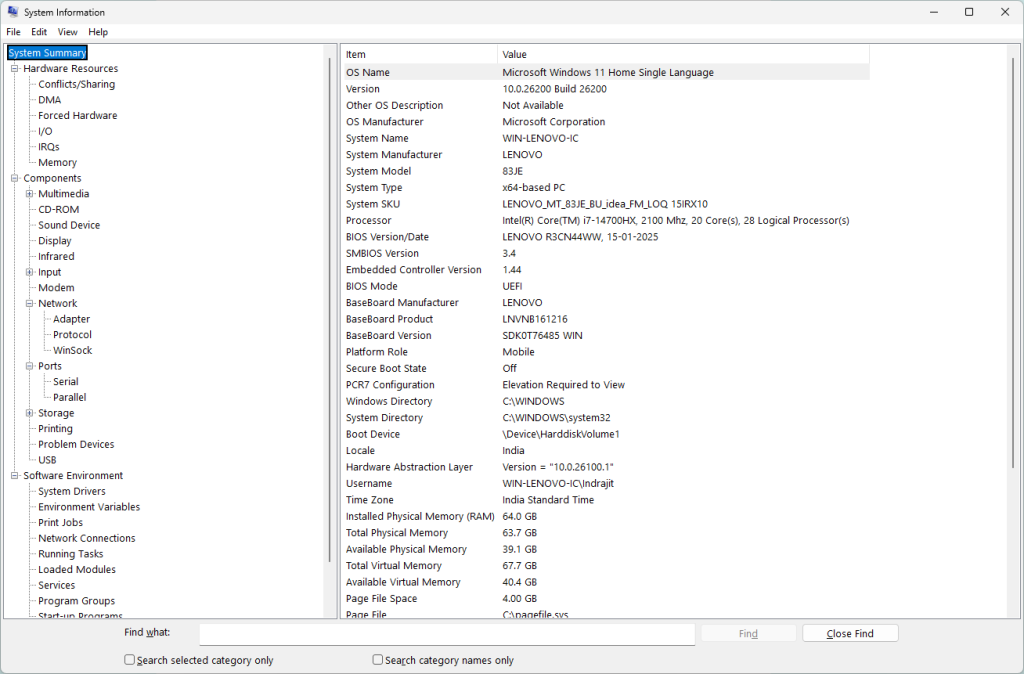
2. msinfo32 – System Information
Need to quickly check your processor, BIOS version, installed RAM, or motherboard details? msinfo32 opens a detailed hardware and software information panel that’s extremely useful during troubleshooting or before upgrading hardware.
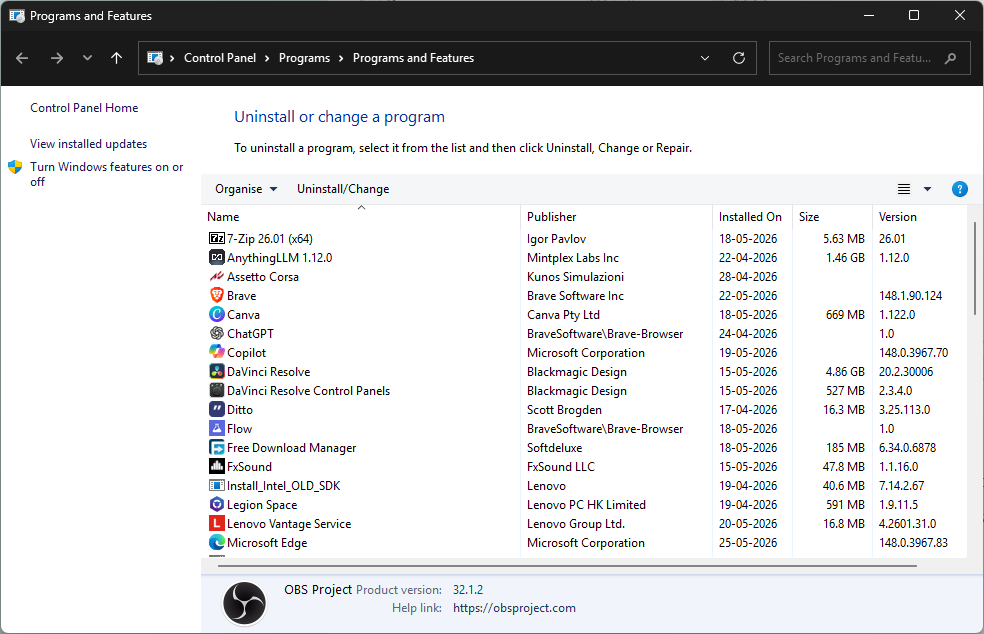
3. appwiz.cpl – Installed Programs
The appwiz.cpl command directly opens Programs and Features, where you can uninstall applications or view installed software. Much faster than manually searching through Windows Settings every time you want to remove something.
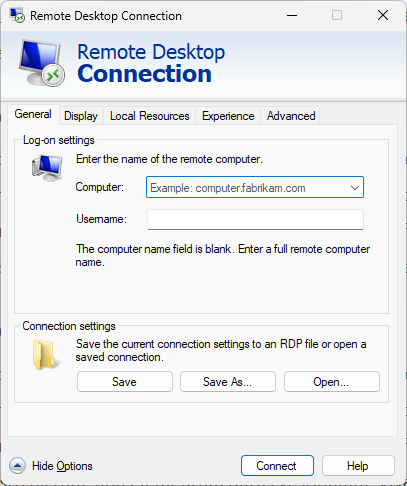
4. mstsc – Remote Desktop Connection
If you remotely access office PCs or servers, mstsc is one of the most Useful Windows Run Commands to remember. It instantly launches Remote Desktop Connection without having to search through Windows menus.
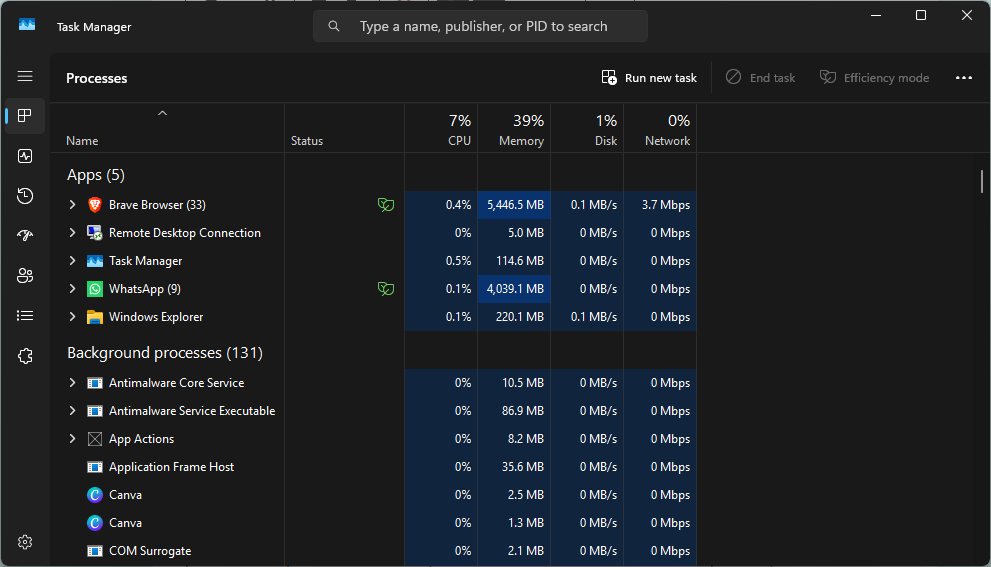
5. taskmgr – Task Manager
Typing taskmgr instantly opens Task Manager. Perfect for quickly ending frozen applications, or identifying which background app is making your laptop sound like it’s preparing for takeoff.
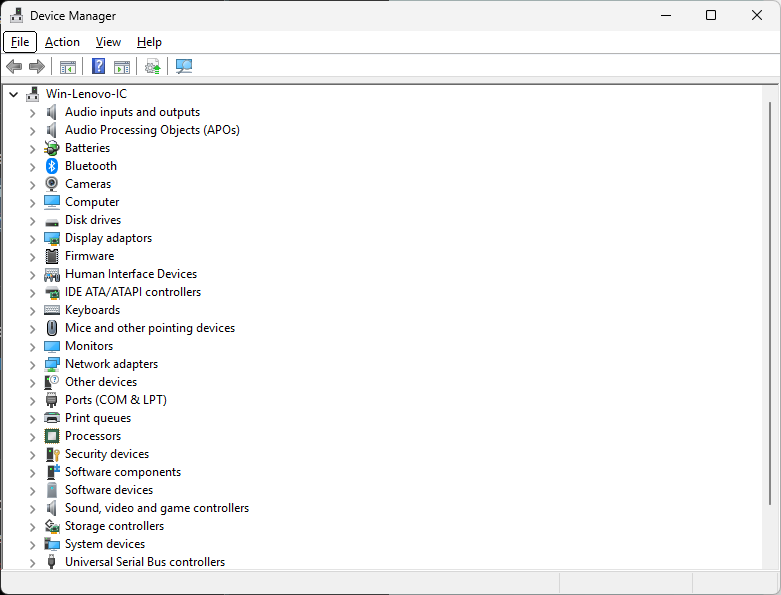
6. devmgmt.msc – Device Manager
The devmgmt.msc command opens Device Manager, where you can check drivers, troubleshoot hardware issues, or identify devices with missing drivers after a Windows reinstall.
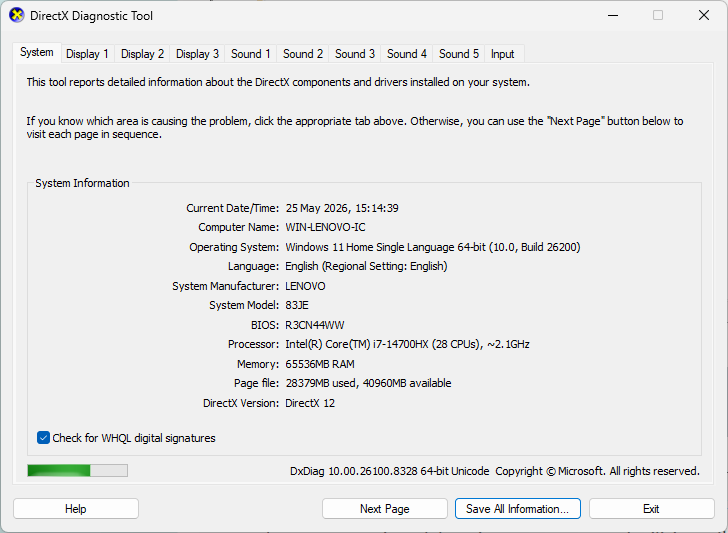
7. dxdiag – DirectX Diagnostic Tool
Gamers and troubleshooting technicians often use dxdiag to check DirectX status, GPU information, audio drivers, and system specs. It’s especially useful for diagnosing gaming or graphics-related problems.
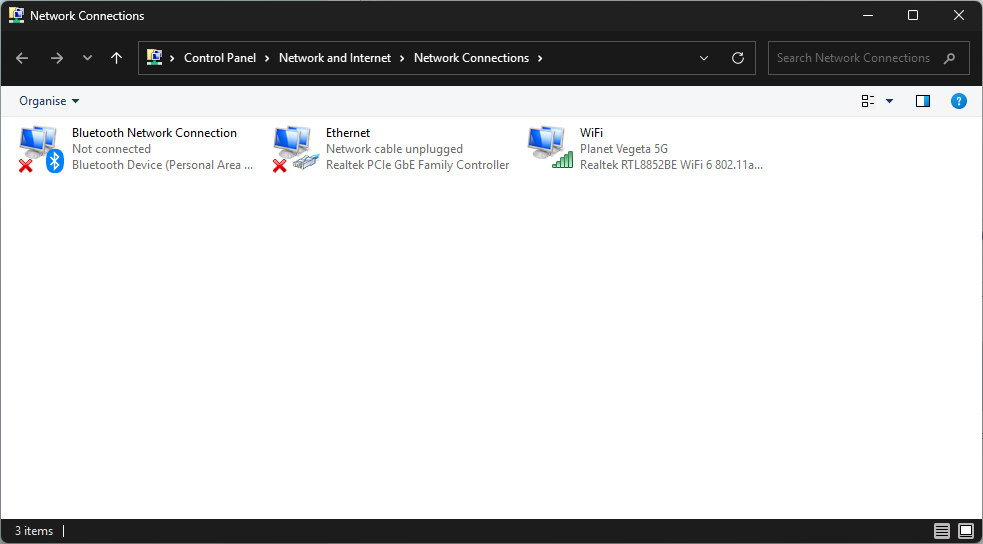
8. ncpa.cpl – Network Connections
The ncpa.cpl command instantly opens your network adapters page. Useful for enabling/disabling Wi-Fi adapters, troubleshooting Ethernet connections, or changing IP settings quickly.
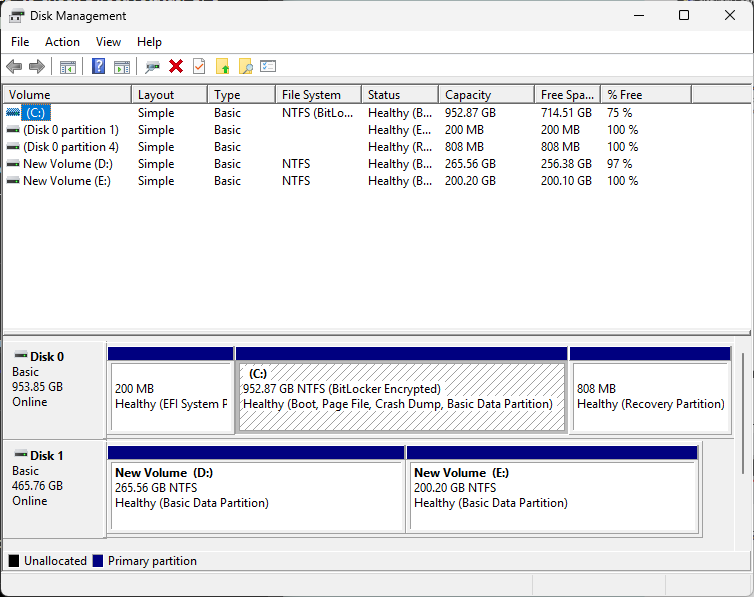
9. diskmgmt.msc – Disk Management
Need to partition a drive or initialize a new SSD? diskmgmt.msc opens Disk Management, where you can create, format, resize, or manage storage drives directly.
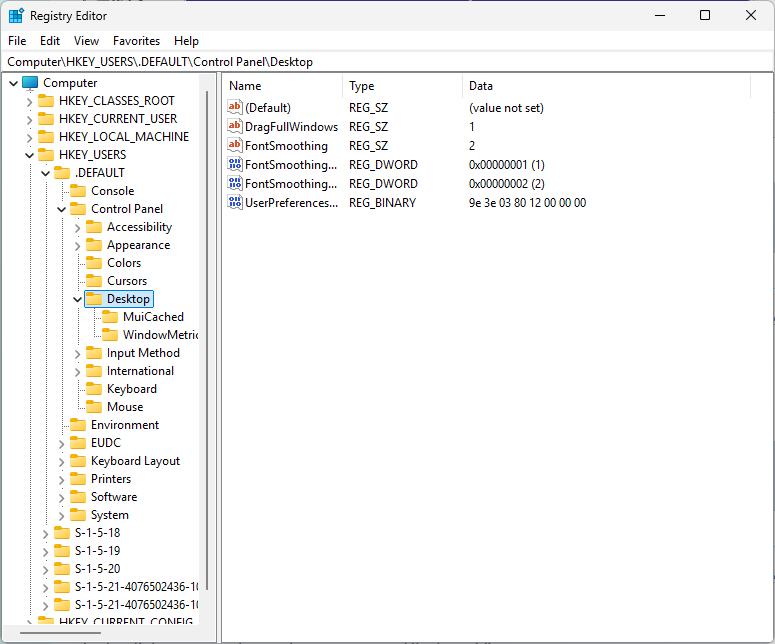
10. regedit – Registry Editor
regedit opens the Windows Registry Editor. This is one of the most powerful Useful Windows Run Commands, but also one of the riskiest. Changing the wrong registry setting can break Windows, so this tool should be used carefully.
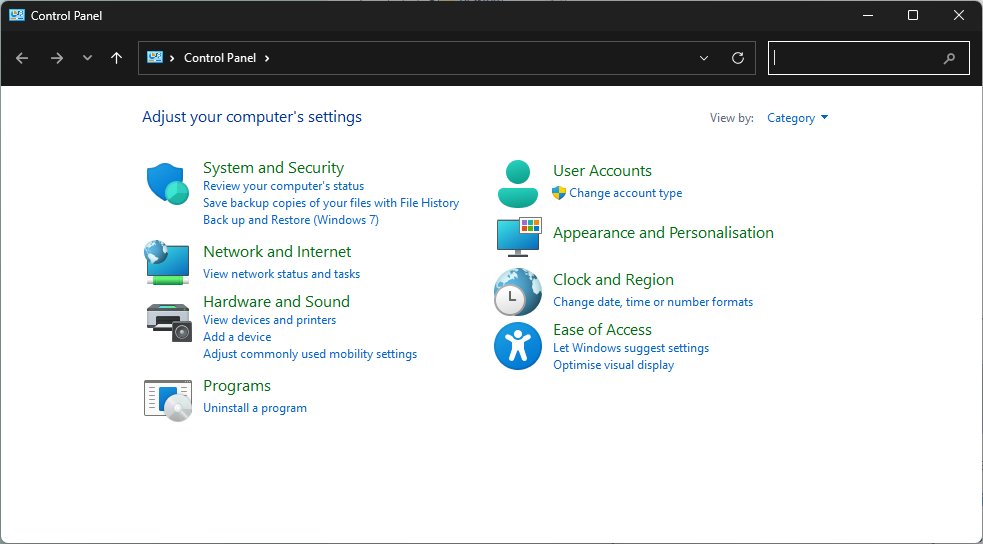
11. control – Control Panel
Even in Windows 11, many advanced settings still redirect to the classic Control Panel. Typing control in run dialog box is often faster than hunting for it manually inside the modern Settings app.
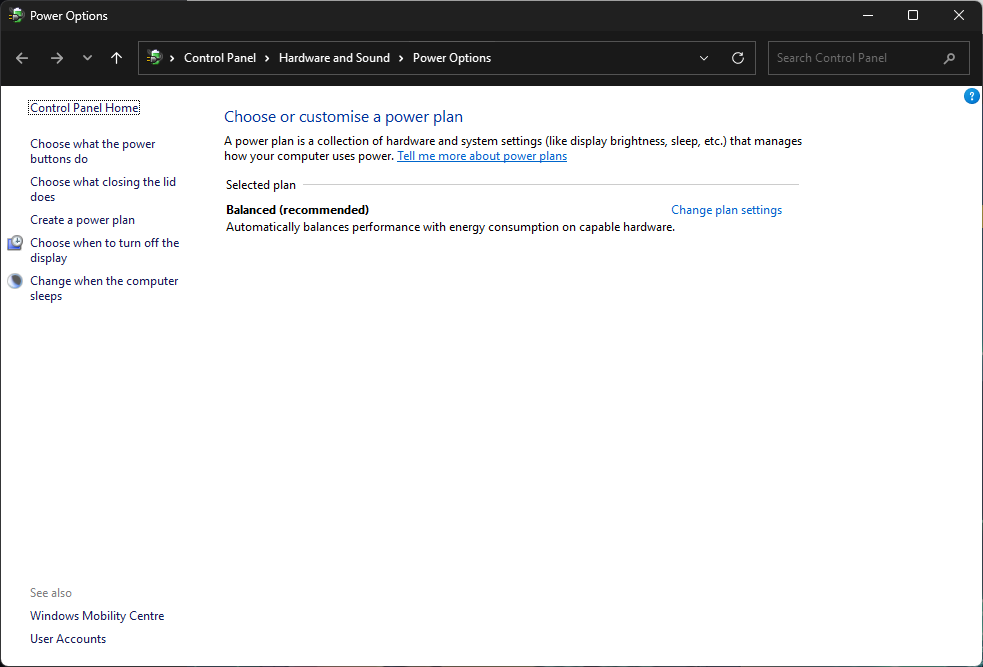
12. powercfg.cpl – Power Options
The powercfg.cpl command instantly opens Windows Power Options. Useful for changing sleep settings, adjusting power plans, improving battery life, or switching between performance and power-saving modes on laptops.
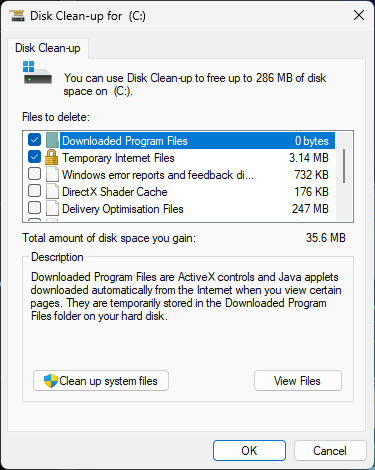
13. cleanmgr – Disk Cleanup
The cleanmgr command launches Disk Cleanup, one of the easiest built-in tools for freeing up storage space. It helps remove temporary files, Windows update leftovers, recycle bin contents, and other junk files slowing down your system.
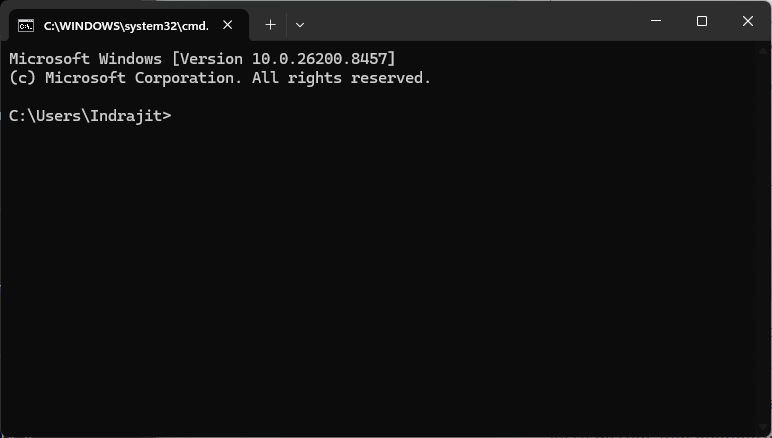
14. cmd – Command Prompt
The cmd command opens the traditional Command Prompt window. Still heavily used for networking tools, troubleshooting commands, and quick system tasks.
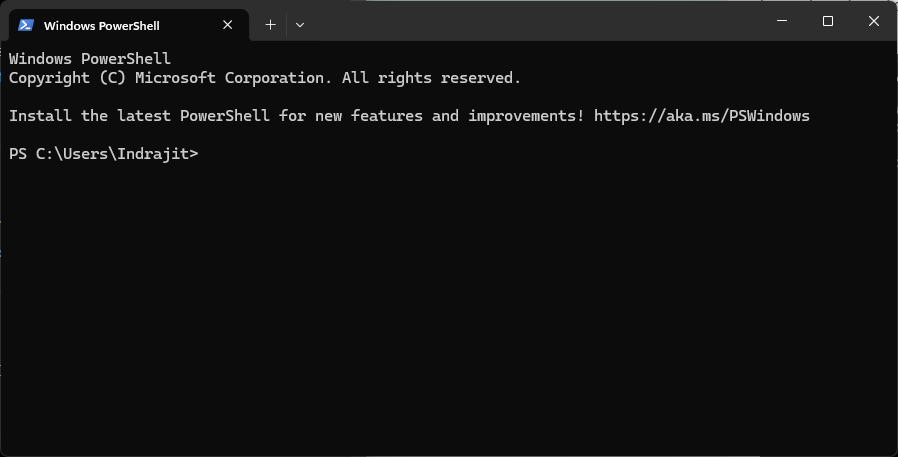
15. powershell – Windows PowerShell
PowerShell is the more advanced version of Command Prompt. IT admins use it extensively for automation, scripting, and managing Windows systems more efficiently.
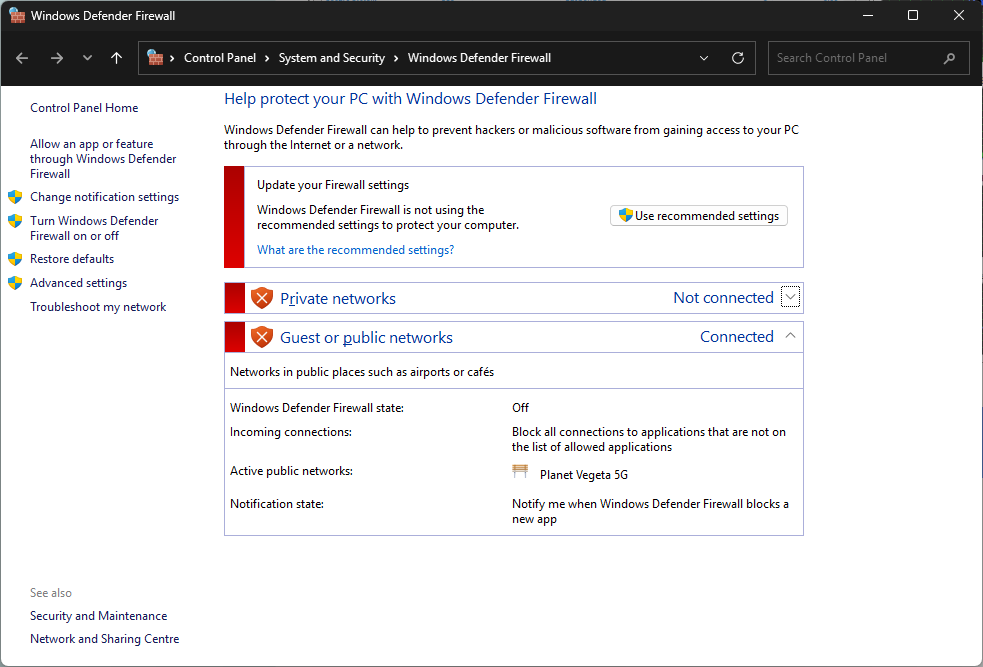
16. firewall.cpl – Windows Firewall
Quickly opens Windows Defender Firewall settings. Helpful for allowing apps through the firewall or troubleshooting blocked connections.
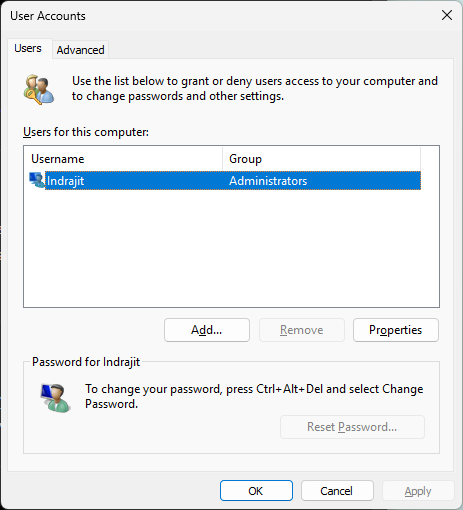
17. netplwiz – User Accounts
One of the most useful hidden tools. Lets you manage local user accounts, reset passwords, and even enable/disable password login requirements on personal systems.
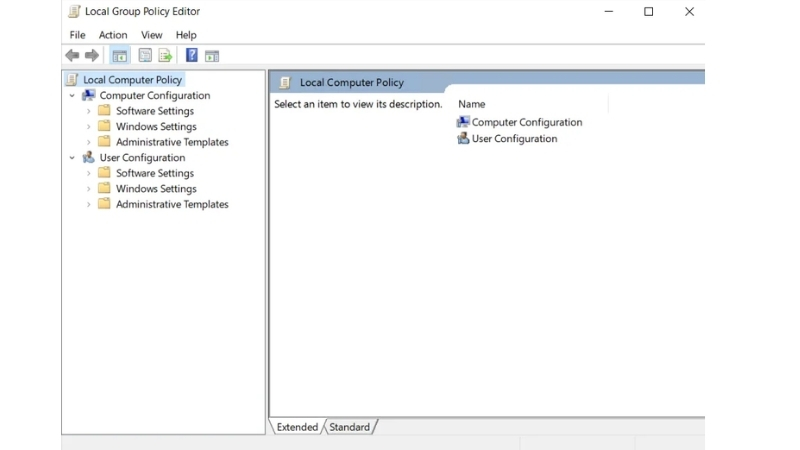
18. gpedit.msc – Group Policy Editor
The gpedit.msc command opens the Local Group Policy Editor, available mainly in Windows Pro and Enterprise editions. It allows advanced users and IT admins to control Windows features, security policies, update behavior, login settings, USB restrictions, and much more from one centralized place.
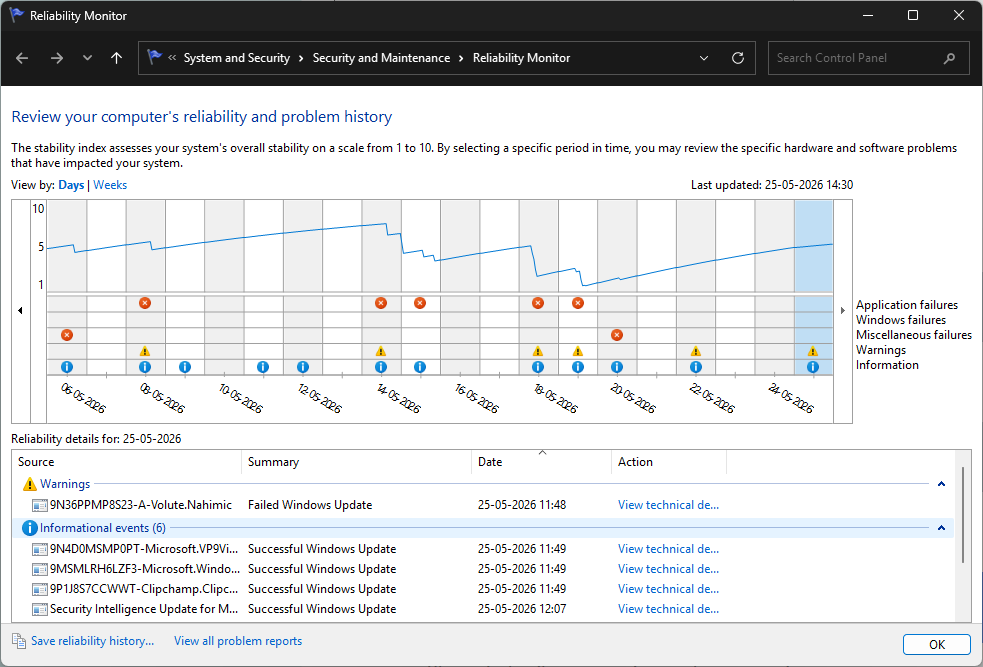
19. perfmon /rel – Reliability Monitor
One of the most underrated Useful Windows Run Commands, perfmon /rel opens Reliability Monitor. It gives a timeline view of crashes, failed updates, driver problems, and stability issues on your PC.
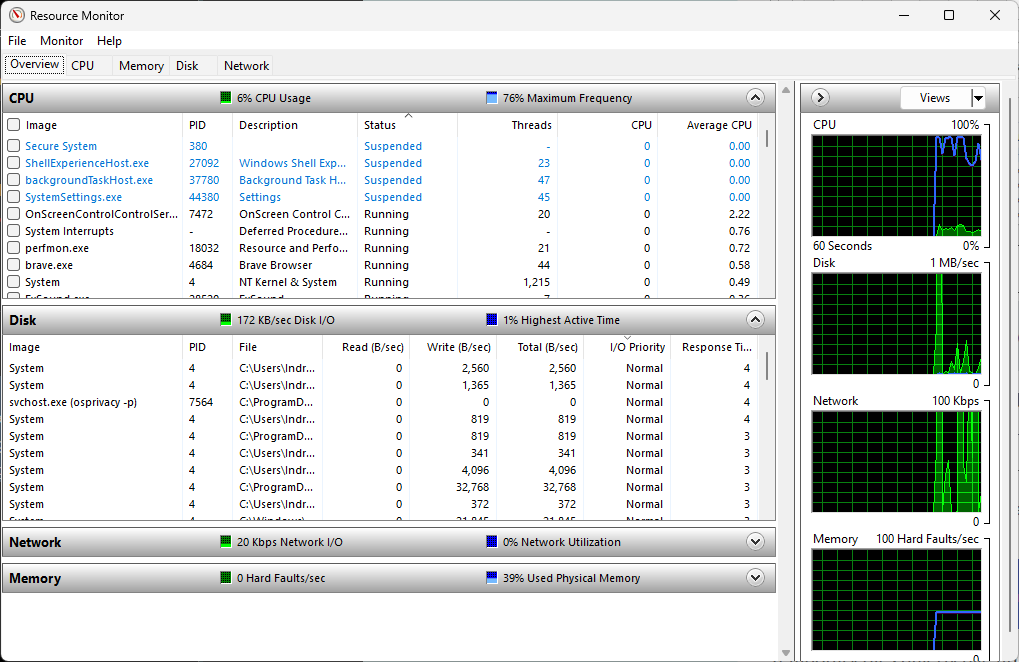
20. resmon – Resource Monitor
If your PC suddenly becomes slow and Task Manager isn’t telling the full story, resmon opens Resource Monitor – a far more detailed troubleshooting tool. It lets you monitor real-time CPU, RAM, disk, and network usage, making it extremely useful for identifying which app or background process is slowing down the system.
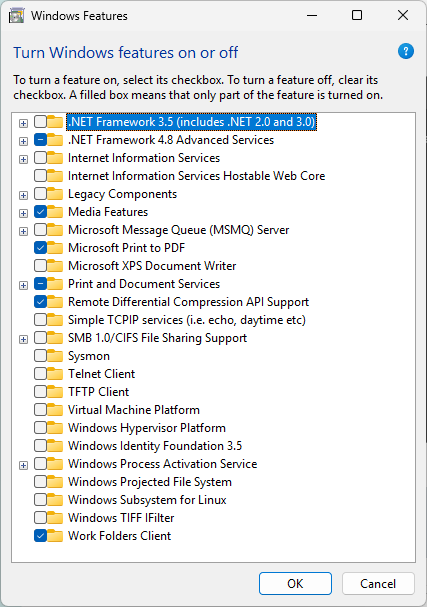
21. optionalfeatures – Windows Features
Opens the Windows Features panel where you can enable or disable features like Hyper-V, Windows Sandbox, Telnet, WSL, and more without digging through Control Panel.
These Useful Run Commands Can Improve Your PC Speed
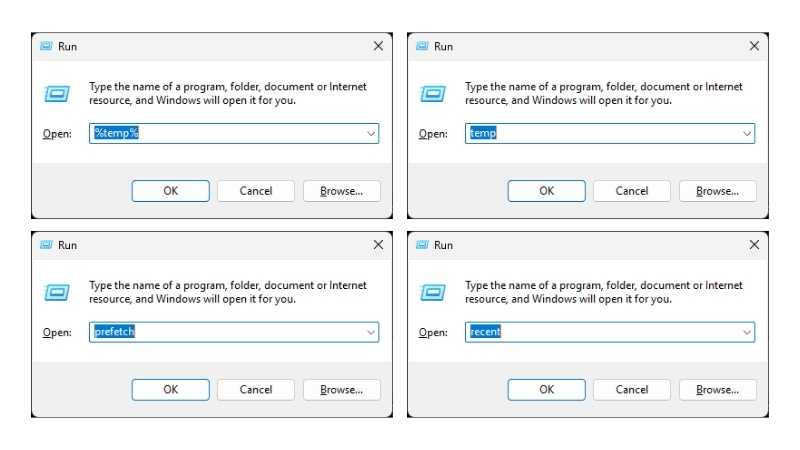
Temporary files quietly pile up over time and can sometimes consume storage unnecessarily. These Useful Windows Run Commands help users quickly access temporary file locations for cleanup.
22. %temp% – User Temporary Files
Typing %temp% opens your personal temporary files folder. Many applications dump leftover cache and temporary data here. Deleting unnecessary files from this folder can sometimes free up storage and improve responsiveness.
23. prefetch – App Launch Cache
The prefetch folder stores cached data that helps applications launch faster. While modern Windows versions manage this automatically, advanced users occasionally clear old prefetch data during troubleshooting or system cleanup.
24. recent – Recently Opened Files
Typing recent opens a folder containing shortcuts to recently accessed files. While mainly useful for quickly reopening documents, clearing it can also help maintain privacy on shared systems.
25. temp – System Temp Folder
The temp command opens another temporary storage folder used by Windows and applications. Not every file here can be deleted while Windows is running, but clearing unused temporary data can still help reduce clutter.
Final Thoughts
Once you get used to using these Useful Windows Run Commands, everyday troubleshooting and navigation become much faster and far less frustrating. Honestly, after using Run commands regularly, manually searching through Windows menus starts feeling like taking the stairs while the elevator is standing right there.
Just like these Useful Windows Run Commands help you quickly access hidden Windows tools and settings, Nurture IT helps businesses simplify complex IT challenges without the endless back-and-forth.
Reach out to us today and simplify your IT experience.
About Nurture IT
Nurture IT, one of the leading IT service providers in Bangalore offers customized scalable technology solutions specifically designed for our client’s unique needs.
As a preferred partner to technology leaders like Lenovo, Dell, Apple, HP, Asus, Tata, Google, Microsoft, Cisco, Sophos, Jamf, Soti, Fortinet, Poly, Okta, Seclore, Seqrite we deploy the most advanced business technology solutions to ensure optimal reliability, productivity, and value.
Our B2B branch, Nurture IT, adeptly serves corporate and scaling-up demands. Conversely, for those not anticipating immediate growth, our Retail division – Laptop World caters to your specific needs. Make an informed choice aligned with your organizational trajectory and immediate necessities.