Microsoft PowerToys: The Ultimate Free Upgrade for Windows Power Users
Microsoft PowerToys isn’t new – it actually goes back to 1996, when it was first released for Windows 95 as a set of small utilities designed to add extra functionality beyond the core OS. Over time, it quietly faded away and was largely absent during the Windows 7 and 8 era, becoming more of a forgotten experiment than an active tool.

That changed in 2019, when Microsoft revived PowerToys as an open-source project for Windows 10 and Windows 11. Today, it’s one of the most powerful free toolkits available for improving productivity on Windows.
It has a lot of features – easily enough to fill multiple blogs. So in this one, let’s focus on the most useful and practical features you’ll actually use daily.
1. Text Extractor: Copy Text from Images or Videos Instantly
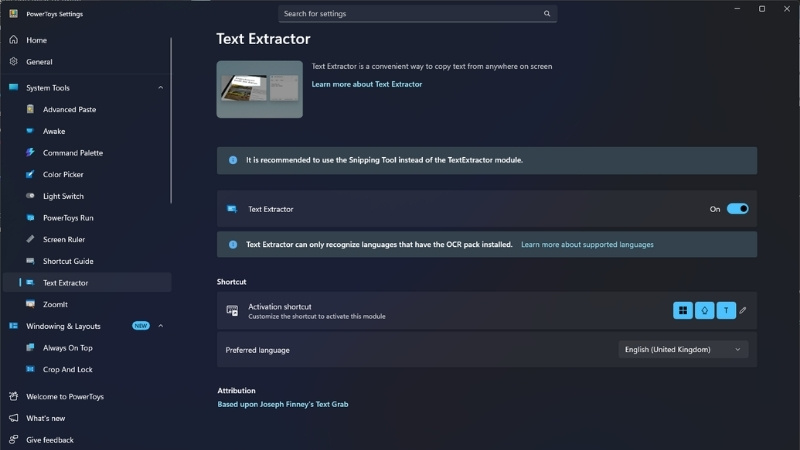
Ever tried copying text from an image, PDF, or video and ended up typing it manually like it’s 2005? Microsoft PowerToys fixes that. With the Text Extractor, you can simply select any text visible on your screen and copy it instantly. It works on screenshots, images, and even paused videos.
To use it, enable Text Extractor in PowerToys Settings and use the default shortcut Win + Shift + T. Your screen will dim, and you can simply drag to select the area containing text. The moment you release, the text is copied to your clipboard and ready to paste anywhere.
It’s perfect for copying invoice details, extracting text from screenshots, or grabbing content from presentations without typing a single word.
2. PowerToys Run: Lightning-Fast Universal Search for Windows
PowerToys Run in Microsoft PowerToys brings a Apple’s Spotlight-like search experience to Windows, making it much faster to find and launch anything on your system. Instead of digging through the Start menu or folders, you can trigger a clean search bar instantly.
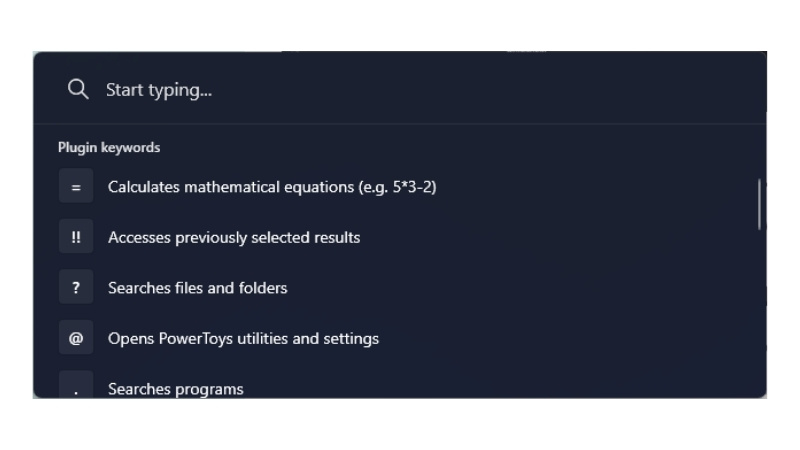
To use it, enable PowerToys Run in settings and press the default shortcut Alt + Space. Start typing the name of an app, file, folder, or even a system command, and results will appear in real time. Just hit Enter to launch what you need.
3. Peek: Preview Files Without Opening Them
Peek in Microsoft PowerToys brings a very Mac-like experience to Windows – if you’ve used macOS, you’ll recognize the “press Space to preview” feature instantly. It lets you quickly view files like images, PDFs, Office documents, videos, and text files without opening heavy apps like Word or media players.
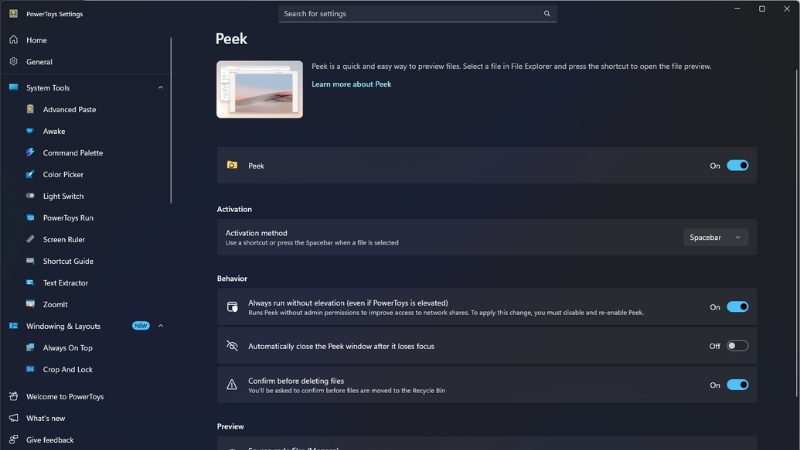
To use it, enable Peek in PowerToys Settings and note the shortcut (default is Space). Then simply select any supported file in File Explorer and press the shortcut. The file opens in a lightweight preview window, letting you quickly scan content and move on without slowing down your workflow.
4. Keyboard Manager: Fix Annoying Keys and Build Your Own Shortcuts
Ever used a ThinkPad and hit Fn instead of Ctrl one too many times? Or wished you could take a screenshot with just one key instead of pressing Win + Shift + S every single time?
The Keyboard Manager in Microsoft PowerToys is built for exactly these situations. It lets you remap keys and create custom shortcuts so your keyboard works the way you want, not the way it was designed.
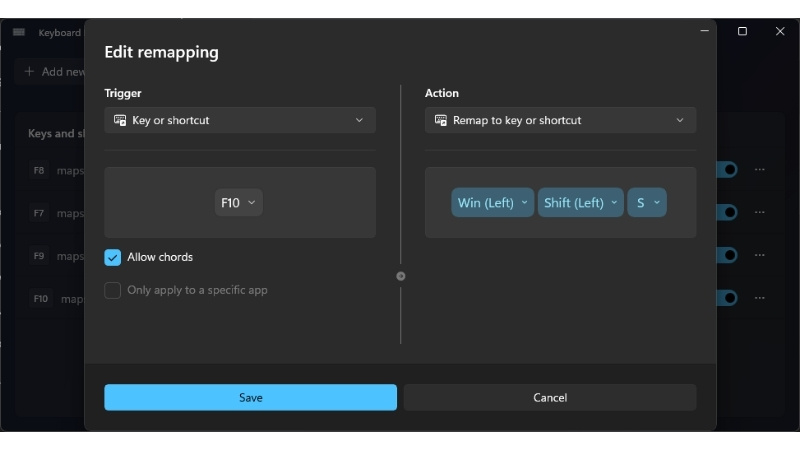
To use it, enable Keyboard Manager in PowerToys Settings. Click “Remap a key” to change a single key’s function, or “Remap a shortcut” to create your own combinations. Press the key or shortcut you want to modify, assign the new action, and save. Just be careful not to override critical system keys unless you enjoy confusing yourself later.
5. Image Resizer: Resize Photos in Seconds Without Any Software
Ever tried emailing a photo and Outlook basically said “nice try, too big”? Or had to open Photoshop just to shrink one image? The Image Resizer in Microsoft PowerToys removes that entire headache. It’s especially useful for graphic designers and marketing teams who constantly deal with multiple image sizes for social media, websites, or client sharing.
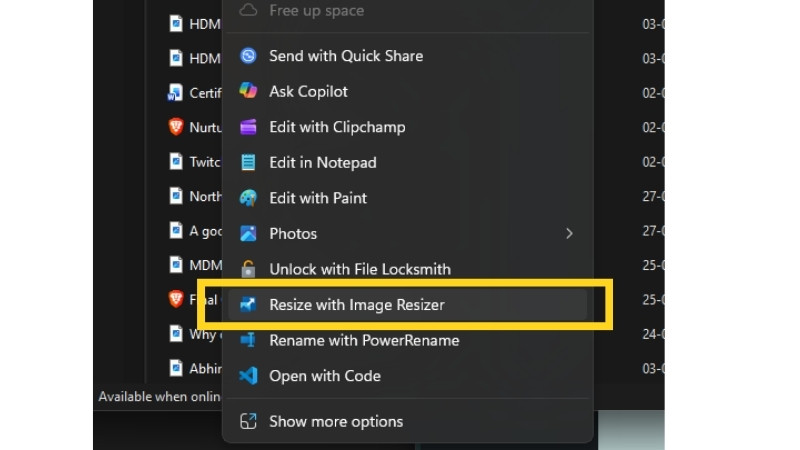
To use it, simply right-click any image in File Explorer and select “Resize pictures”. Choose from presets like Small, Medium, Large, or create your own custom size. Hit resize, and it instantly creates a new version. No apps, no loading screens, no wasted time.
6. File Locksmith: Find Out What’s Blocking Your File
Tried deleting a file and Windows throws the classic “file is in use” error with zero explanation? That’s where File Locksmith in Microsoft PowerToys steps in. Instead of guessing which app is causing the issue or restarting your system like it’s a ritual, you can see exactly what’s locking the file.
Just right-click the file in File Explorer and select “Unlock with File Locksmith.” It will show you the process using the file, and you can end it right there. Simple, direct, and saves you from unnecessary frustration.
7. Color Picker: Instantly Capture Any Color on Your Screen
If you’ve ever tried matching a color from a website, logo, or image and ended up guessing “close enough,” you’ll appreciate this. The Color Picker in Microsoft PowerToys lets you grab the exact color from anywhere on your screen, which is incredibly useful for designers, marketers, or anyone working with brand colors.
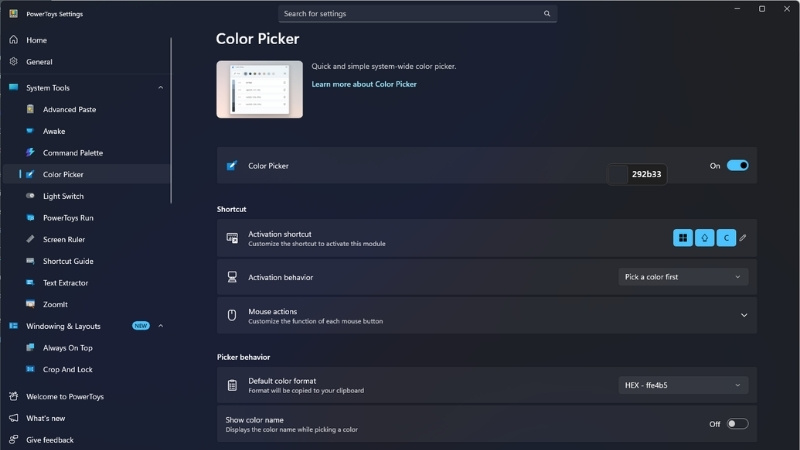
To use it, enable Color Picker and press the default shortcut Win + Shift + C. Hover over any color on your screen and click to capture it. You’ll instantly get its values in formats like HEX, RGB, or CMYK, ready to copy and use wherever needed. No more guessing, no more mismatch.
8. Awake: Stop Your PC from Sleeping at the Worst Time
Nothing’s more annoying than your PC going to sleep right in the middle of a large download, software installation, or long-running task. Instead of digging through Windows power settings every time, the Awake feature in Microsoft PowerToys gives you quick control to keep your system active when it matters.
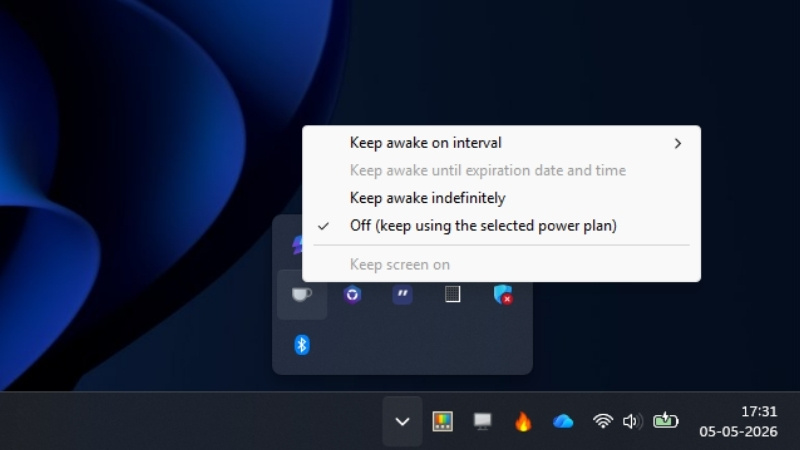
Just enable Awake in PowerToys Settings and choose a mode like “Keep awake indefinitely” or “Keep awake temporarily.” You can also manage it directly from the system tray icon without reopening settings.
9. Always on Top: Keep Important Windows in Front
Ever been doing calculations and constantly switching back to the calculator? It gets annoying fast. The Always on Top feature in Microsoft PowerToys solves this by letting you pin a window so it stays visible while you work on other things.
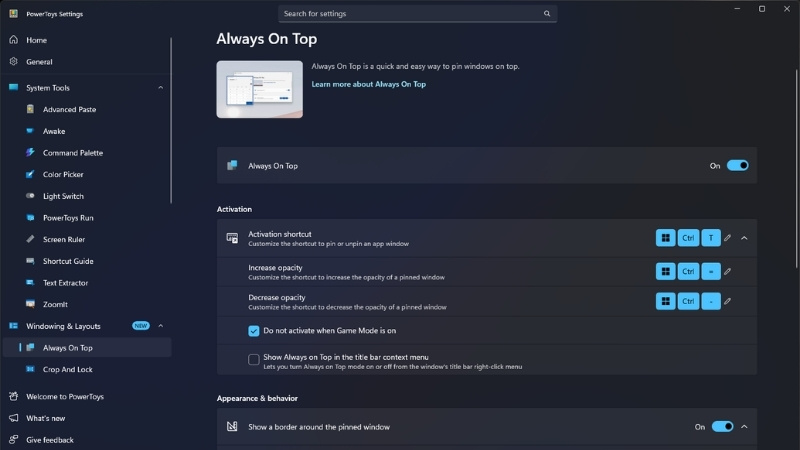
To use it, open the window you want (like Calculator) and press Win + Ctrl + T. That window will stay on top no matter what else you click.
10. Power Display: Control External Monitor Settings from Windows
If you’ve ever had to reach behind your monitor just to adjust brightness, you already know how annoying that is. We had earlier shared a tool in another blog as well as in a LinkedIn Post called Twinkle Tray for this exact problem, but now Microsoft PowerToys is stepping in with its own solution called Power Display.
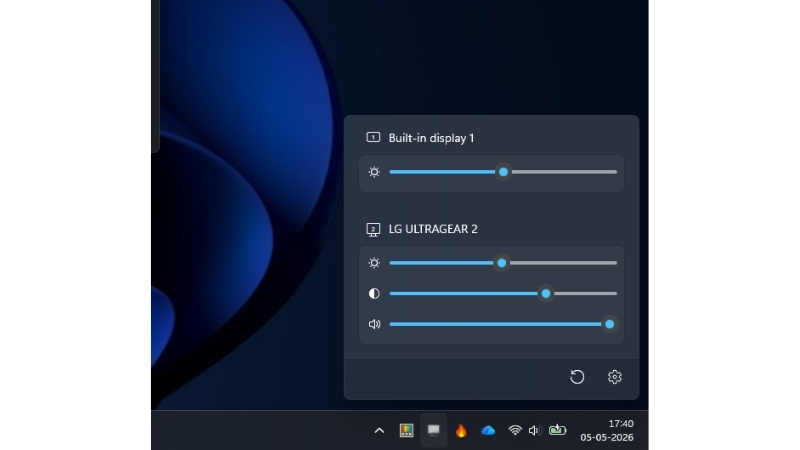
With Power Display, you can control your external monitor’s brightness, contrast, and even color profiles directly from the system tray in Windows 11.
11. Mouse Without Borders: One Keyboard, Multiple PCs
If you work with multiple systems, switching keyboards and mice gets old very quickly. Mouse Without Borders in Microsoft PowerToys lets you control up to four PCs using a single keyboard and mouse, almost like extending one system across screens.
12. PowerRename: Rename Multiple Files in One Go
Renaming files one by one is fine… until you have 50 of them. PowerRename in Microsoft PowerToys lets you rename multiple files at once using patterns, search and replace, or numbering.
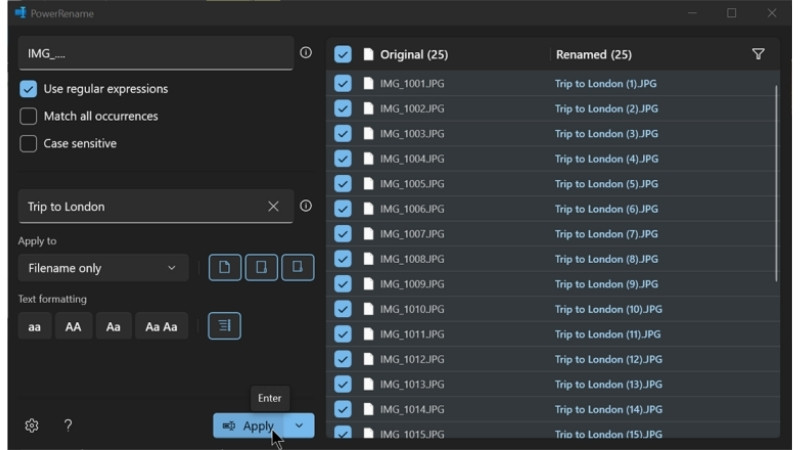
Just select the files in File Explorer, right-click and choose “PowerRename.” Set your rules, preview the changes, and hit apply. Quick, clean, and no more repetitive renaming.
13. Shortcut Guide: Stop Forgetting Shortcuts
With so many features in Microsoft PowerToys, let’s be honest – you’re not remembering every shortcut. That’s exactly where Shortcut Guide helps. Instead of Googling or guessing, it shows you all the useful Windows shortcuts right on your screen.
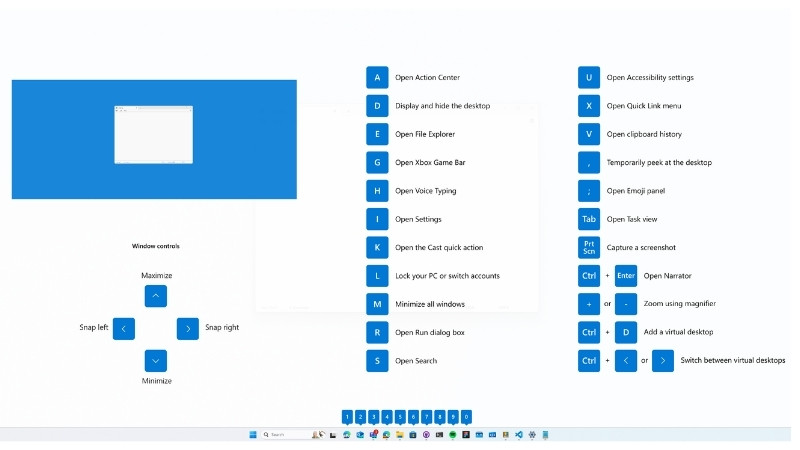
Just hold down the Windows key (or use your configured shortcut), and an overlay pops up with all available Win key shortcuts like Win + E, Win + I, and more. It’s basically a built-in cheat sheet that helps you learn shortcuts naturally over time.
14. There’s Even More
Beyond all these features, Microsoft PowerToys includes several other utilities that quietly improve your daily workflow. Tools like FancyZones for advanced window layouts, PowerToys Run plugins, Hosts File Editor, Environment Variables editor, Registry Preview, Quick Accent, and Screen Ruler all add small but meaningful enhancements.
How to Download Microsoft PowerToys
Getting started with Microsoft PowerToys is straightforward, and you’ve got two easy options depending on how you prefer installing apps.
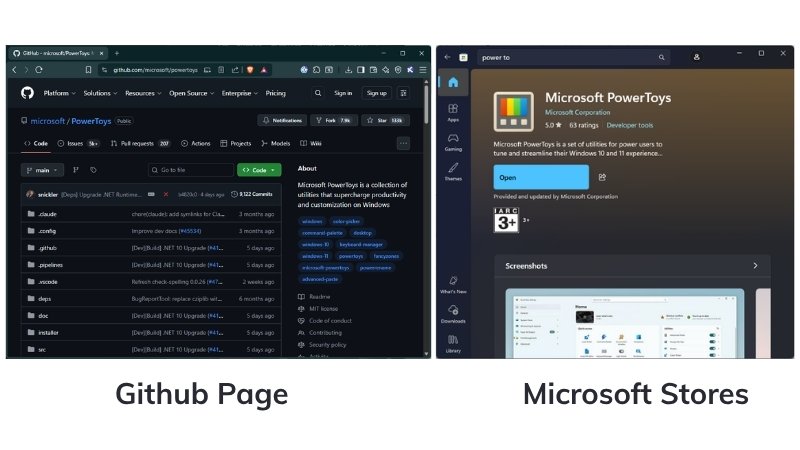
The simplest way is through the Microsoft Store – just search for “Microsoft PowerToys,” click install, and it will handle updates automatically in the background. If you prefer manual control or want the latest releases faster, you can download it from the official GitHub page. Just grab the latest installer, run it, and you’re good to go in a couple of clicks.
About Nurture IT
Nurture IT, one of the leading IT service providers in Bangalore offers customized scalable technology solutions specifically designed for our client’s unique needs.
As a preferred partner to technology leaders like Lenovo, Dell, Apple, HP, Asus, Tata, Google, Microsoft, Cisco, Sophos, Jamf, Soti, Fortinet, Poly, Okta, Seclore, Seqrite we deploy the most advanced business technology solutions to ensure optimal reliability, productivity, and value.
Our B2B branch, Nurture IT, adeptly serves corporate and scaling-up demands. Conversely, for those not anticipating immediate growth, our Retail division – Laptop World caters to your specific needs. Make an informed choice aligned with your organizational trajectory and immediate necessities.